

Clio has one of the most sophisticated and flexible invoicing workflows available in cloud-based legal software—but are you using the tools that help your clients have a smooth experience and make your firm look polished and professional?
We handle invoicing for 80+ clients, and before we take over invoicing, there are three Clio “Send” feature settings we always review and customize first:
- Change the “From” email address used to send invoices
- Customize your email signature (logo, address, links, etc.)
- Use and personalize Bill Message Templates
1) Change the “From” Email Address
Why this matters: If your invoices are being sent from Clio’s default email address, they may land in your client’s junk/spam folder.
Steps:
- Go to an Invoice/Bill
- Select the drop-down menu and choose “Send”
(You will not actually send the bill—this is only for setup.)

- After selecting Send, you will see a dialogue box
- The “From” email address will appear as: notifications@clio.com
Using this email address may be causing your emails to be routed to your client’s junk/spam folder.
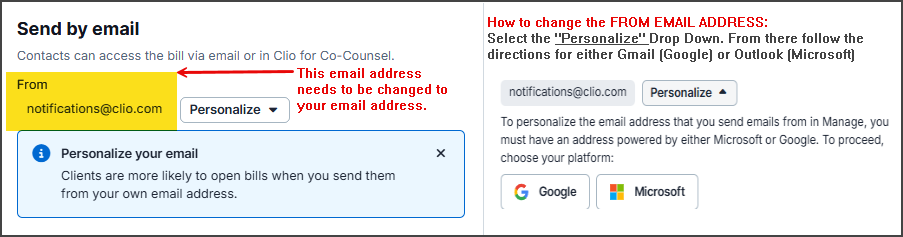
✅ Follow the instructions based on whether you use:
- Gmail or Outlook
2) Customize the Email Signature
When you send an invoice through Clio, you will see a preview panel on the right side of your screen. Many firms discover that the default message is very plain—and the email signature may be missing entirely.
Let’s fix that!
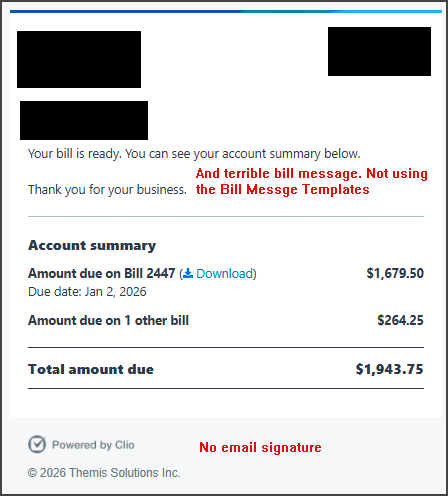
Important: This step can only be completed after you finish Step #1.
Where to update it:
Go to Settings → Communications
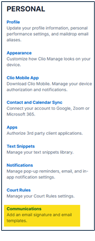
Inside the Communications section:
- Add your full email signature (logo, links, formatting, etc.)
- Be sure to check all 4 boxes in the signature settings area
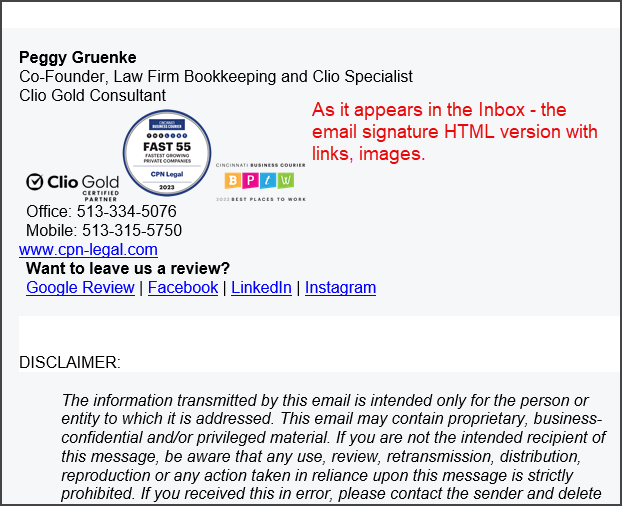
(Tip: some signature elements may not appear in Clio’s preview window, but they will still appear in the delivered email.)
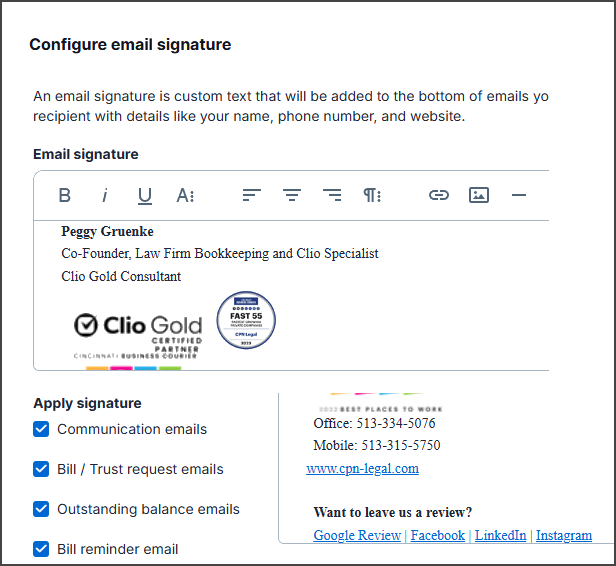
✅ Once updated, you’ll see:
- Your updated signature included in the invoice message preview
- A more professional branded look for clients
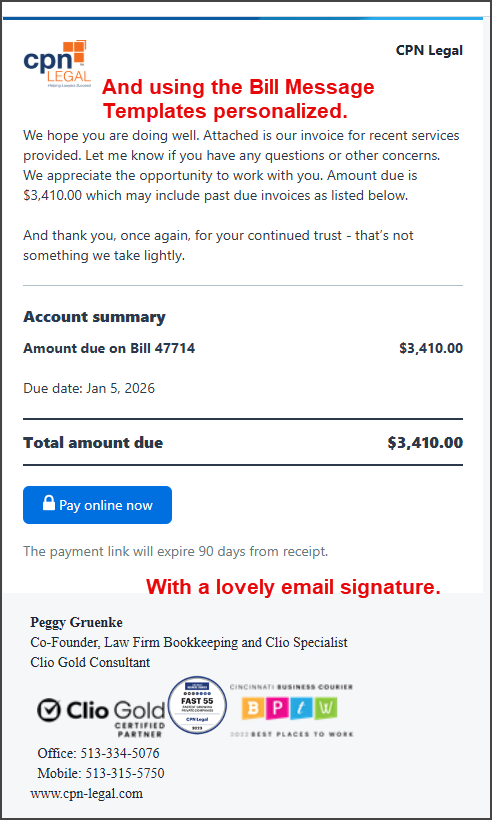
- Below is how it appears in Outlook/Gmail after sent to the client.
3) Customize Bill Message Templates
One of Clio’s best features (and something many platforms don’t offer) is the ability to create multiple bill message templates.
We are heavy users of these templates, and they make invoicing faster, more consistent, and more professional.
Where to find them:
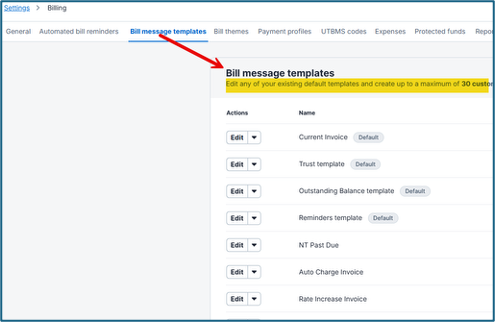
Go to Billing Settings → Bill Message Templates
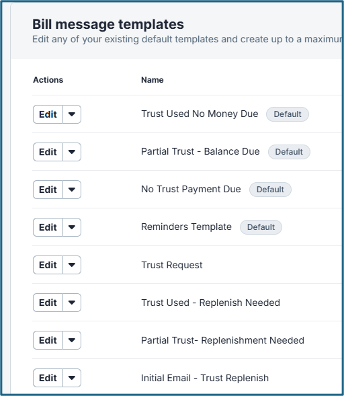
You can create up to 30 templates, but we recommend starting with at least 6 templates to cover common billing situations.
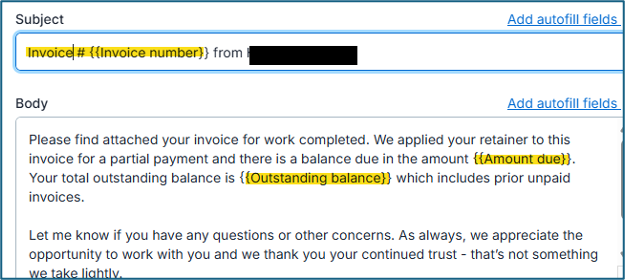
Pro Tip: Use Autofill Fields
To make your templates feel personalized (without extra work), use Clio’s autofill fields. These allow Clio to automatically insert client-specific details into your bill messages.
Final Thoughts
Making these three updates takes a small amount of time—but it can dramatically improve:
✅ Invoice deliverability (less spam/junk issues)
✅ Professionalism and branding
✅ Client experience and communication consistency
Summary: Small Fixes, Big Impact
Cleaning up your billing process doesn’t require a full system overhaul—but it does require intention. Updating your “From” email address, polishing your invoice signature, and using bill message templates consistently can significantly reduce payment delays, improve client communication, and elevate how professional your firm appears.
These changes are simple, but they’re also easy to overlook—especially when billing is just one of many things competing for your attention.
Want Help With This?
At CPN Legal, we manage invoicing for 80+ firms and routinely help clients configure, clean up, and optimize their Clio billing workflows. If you’re unsure whether your settings are working for you—or you’d rather hand this off entirely—we’re happy to help. From setup to ongoing invoicing support, we make sure your billing process is clear, consistent, and client-friendly.
Focus on your clients, not your ledger. Learn how to fix your billing process. Call us today at (513) 463-1817 to ensure your firm's financials are immaculate and tax-ready.